Guide6 min read
What to put on screen in a follow-along workout video
The timer, the exercise name, up next and a progress bar: what goes on screen during work and rest, where it sits, and how big to make it for a TV or a phone.
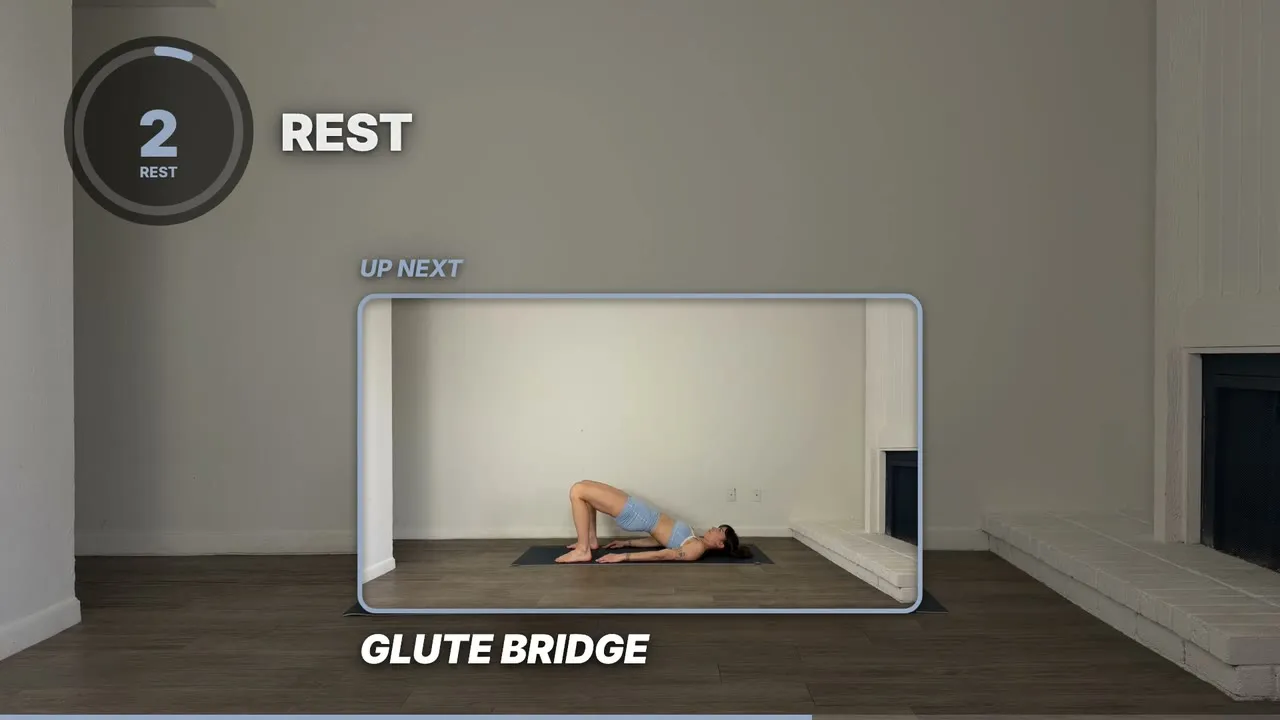
During an exercise, show the time left and the name of the move. During a rest, show the time left and what’s coming next. Add a thin progress bar and a small logo, keep it all off your body, and you’re done.
Design for someone on a mat
Picture who’s watching: someone out of breath, three metres from a TV or a phone propped on a water bottle, glancing up for about a second between reps. Everything on screen should answer one question in that second, with a number or a word.
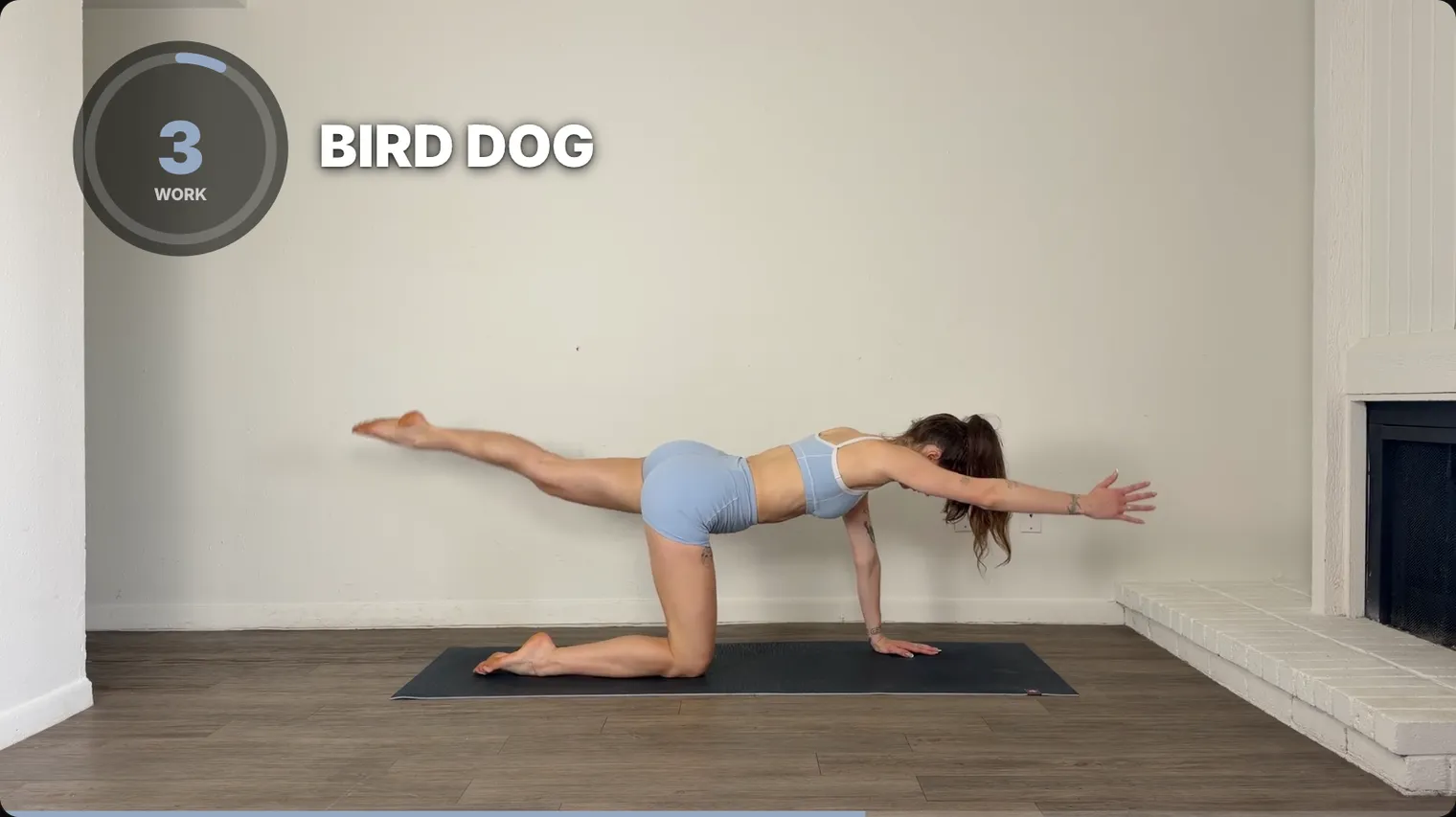
During an exercise: the countdown and the name
Make the countdown the biggest thing on screen, and have it count down so people see how long is left. Under a minute, plain seconds (“45”) read faster than “0:45”.
Put the exercise name next to it, in the words people would say out loud. “Reverse lunge” beats “Alt RL w/ DB”. Add the side when it changes, like “Side plank, left”.
During a rest: what’s coming next
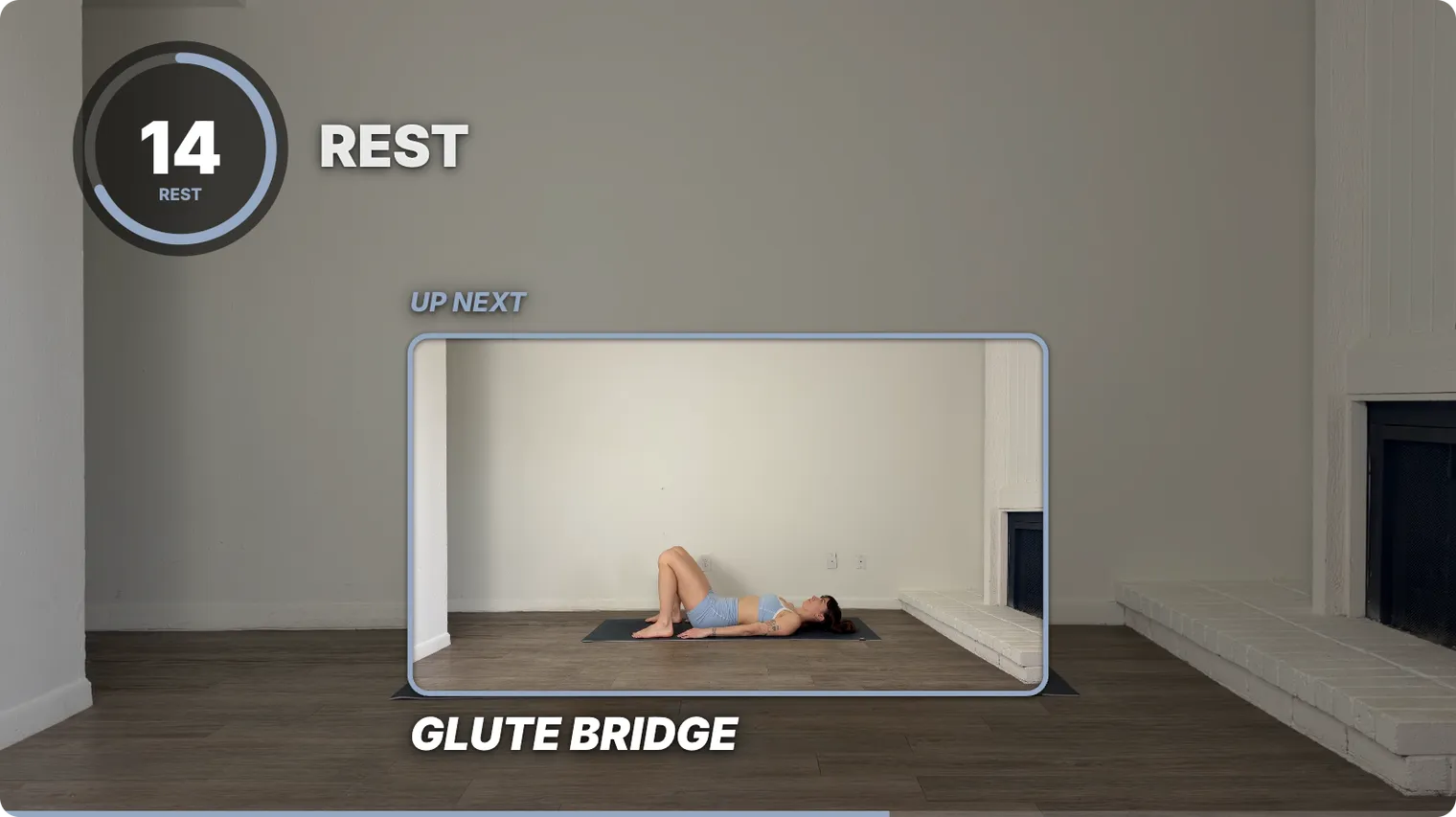
Rest is when people actually look at the screen, because they’re standing still. Show the same countdown in the same place, plus the next exercise’s name and a few seconds of the move playing on a loop.
Show it from the very start of the rest, so there’s time to grab a band or roll onto a back. A few words of form tip fit here too.
A progress bar for the big picture
At minute 18 of 30, people want to know how much is left so they can pace themselves. A thin bar along the top or bottom edge answers that and takes almost no room. A percentage of the video played, like “62%”, answers it too, and SweatCut’s progress bar prints one in its Stripes, Capsule and Percent styles.
 Line
Line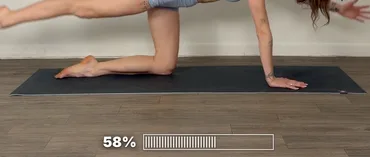 Stripes
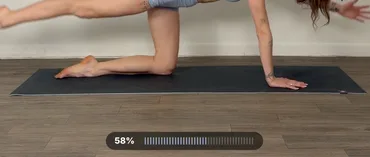 Capsule
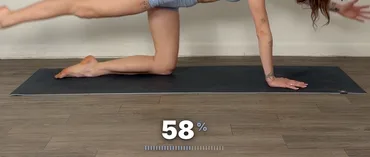 Percent
The cheat sheet
| Element | What it answers | Where it goes | When it shows |
|---|---|---|---|
| Countdown | How long until this ends? | A top corner | The whole video |
| Work or rest label | Should I be moving? | Beside the countdown | The whole video |
| Exercise name | What am I doing? | Next to the countdown | During work |
| Up next | What’s next, and what does it look like? | The side your body isn’t using | During rest |
| Form tip | How do I do it well? | Beside the up-next clip | During rest |
| Progress bar | How much is left? | Along the top or bottom edge | The whole video |
| Logo | Whose video is this? | A corner, small | The whole video |
| Intro | Is this the workout I want? | Over the warm-up | The first few seconds |
| Outro | Which workout is next? | Clear of YouTube’s end-screen boxes | The last seconds |
Where it all goes
Keep the graphics out of the space your body moves through. Floor work fills the bottom third, so a name across the bottom can cover your hands in a push-up.
- Use the corners, inside the middle 80% of the picture. Apple’s Final Cut Pro guide calls this the title-safe area, where the edge of a TV can’t hide text.
- Keep the countdown with its work or rest label, and the up-next clip with its name and tip.
- Leave everything in the same place for the whole video, so people know where to look.
Big enough for a TV across the room
For a starting size, borrow from subtitles. The BBC sets each line at 7 to 8% of the picture’s height in a 16:9 video, which is about 75 to 85 pixels on a 1080p frame. Use that as the minimum for the exercise name, and make the countdown about twice as tall.
Give the text a dark panel or a firm shadow so it holds up over moving footage. Then watch a minute of the export on a phone from the mat and on a TV from across the room. If you squint, go bigger.
Tell work from rest at a glance
Give work and rest different colours, and put a word on screen too, like WORK and REST. Colour alone fails some viewers: the US National Eye Institute says the most common type of colour blindness makes red and green hard to tell apart, and the web’s accessibility guidelines (WCAG) warn against using colour as the only signal. Your brand colour for work and white or grey for rest is a safe pair.
Beeps for anyone facing the floor
Someone in a plank can’t see the countdown, so beep on each of the last three seconds of every interval. Dip the music under each beep so it cuts through.
What to leave off
- A second clock. The progress bar already covers the whole workout.
- Calorie counts, because the video can’t measure what anyone burns.
- Subscribe buttons during a set. Save them for the end.
The start and the end of the video
Put a few seconds of intro over the warm-up: the workout’s name, how long it runs and what equipment to grab. People can check they picked the right video while they start moving, and it fades before the first exercise starts.
End with an outro that names the next workout. Keep its words clear of where you’ll put YouTube’s end-screen boxes, which is where the subscribe button goes. How to add an intro and outro to a workout video covers what to write and how to time it.
SweatCut puts all of this on for you
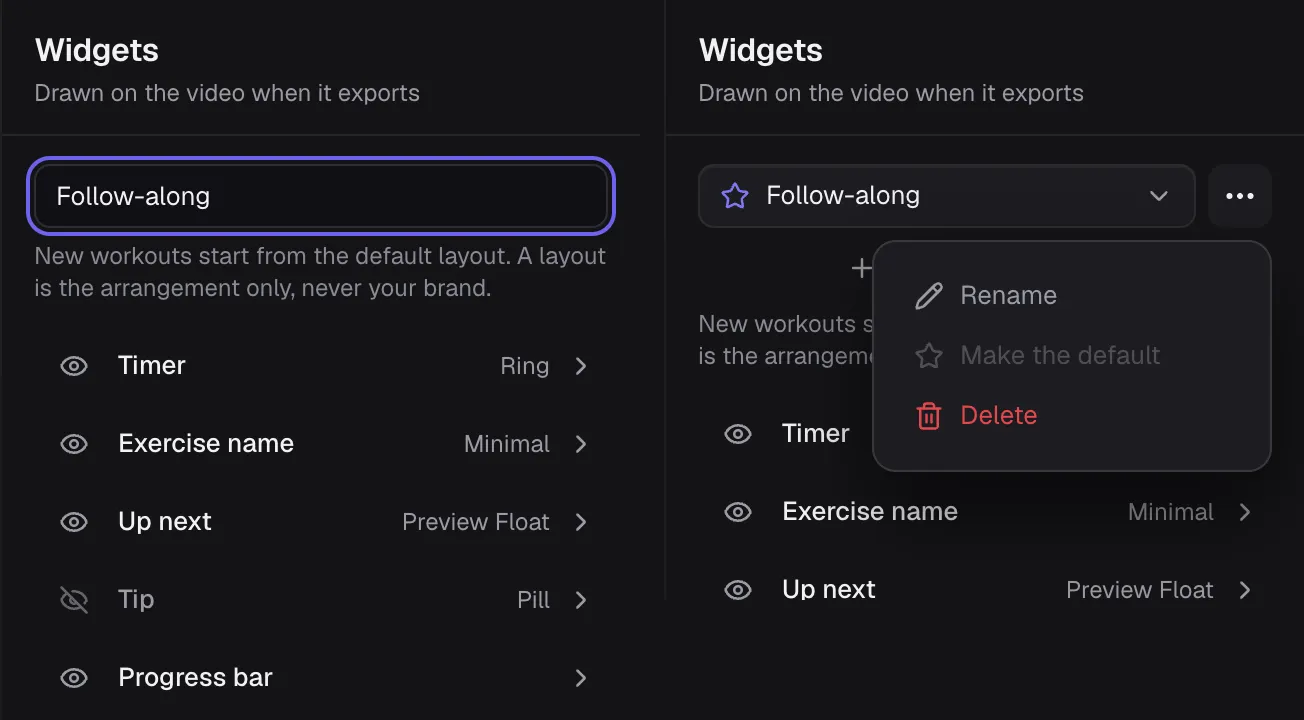
In a general editor, every item on this list is built and timed by hand at every interval, then rebuilt for the next video. SweatCut draws this whole list on the video as widgets: the countdown, the exercise name, up next, a coaching tip, a progress bar, your logo and a title, with the beeps and the music dip built in. Mark the workout once and every widget lands on the right moment. Every widget but the logo and the title comes in several styles. SweatCut also draws the intro and the outro, as graphics you add from the Graphics panel.
Drag a widget to place it and save the arrangement as a layout, so every new workout starts from it. Your colour, font and logo come from your brand, which you set up once.
To get the timers onto a video you’ve already filmed, see how to add a timer to a workout video.
Questions
Where should the timer go on a workout video?
In a top corner, on the side of the frame you don't move into, and inside the inner 80% of the picture so the edge of a TV can't cut it off. Keep it in the same place for the whole video.
How big should text be in a workout video?
Start from the size the BBC uses for subtitles: 7 to 8% of the picture's height in a 16:9 video, about 75 to 85 pixels on a 1080p frame. Make the countdown about twice that.
Should a workout timer count up or down?
For timed intervals, count down. People want to know how long is left, and a count-up clock makes them do sums mid-set.
What colours should work and rest be?
Two clearly different colours, like your brand colour for work and white or grey for rest, each with a word such as WORK or REST. Red and green on their own are hard to tell apart for the most common type of colour blindness.