Tutorial5 min read
Set up your brand and layout once in SweatCut
Add your logo, colour and font, pick a timer style and place the widgets. Save them as defaults, and every new workout opens looking like your channel.
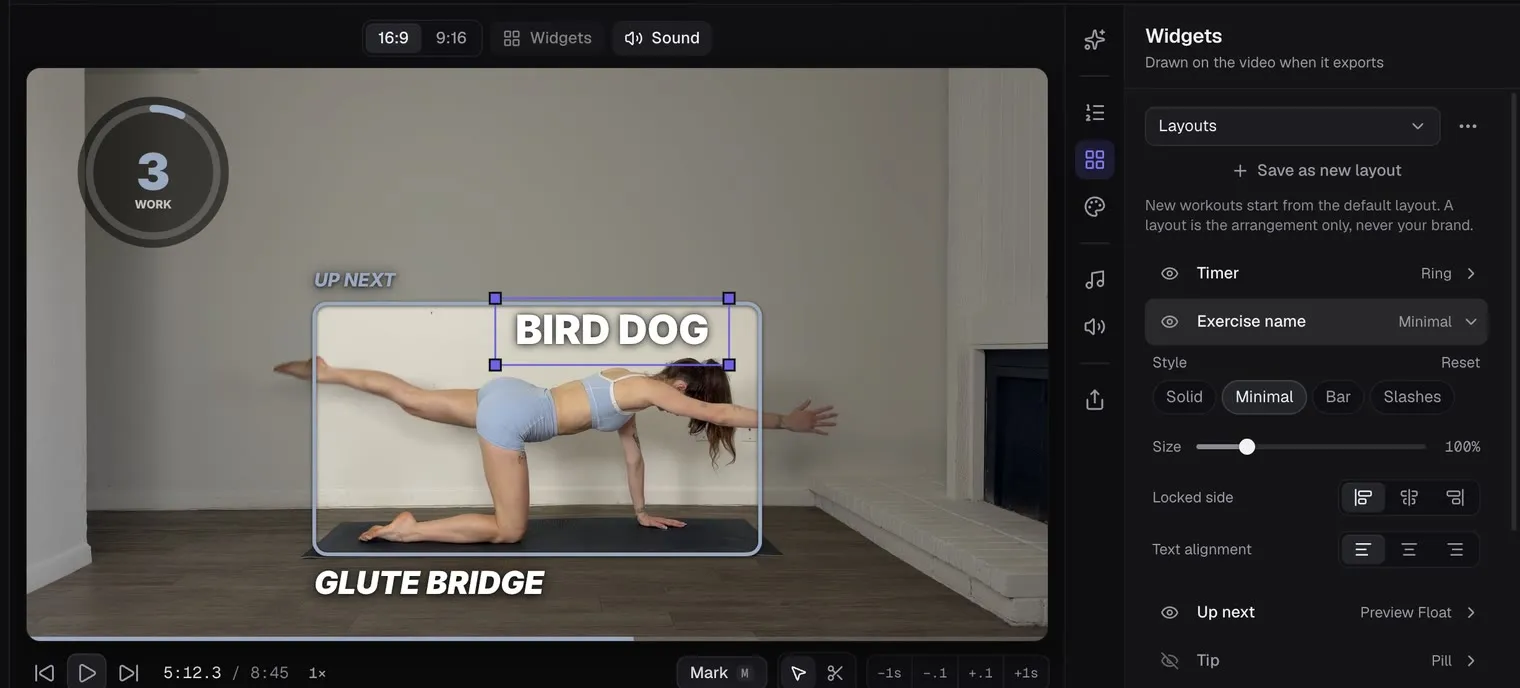
Set your look up once and every new workout opens wearing it. SweatCut keeps it in two panels: Brand for your title, colour, logo and font, and Widgets for where everything sits on the video.
You’ll find both in the column of icons on the right of the editor. New to SweatCut? Start with edit your first workout.
Add your colour, logo and font
Open Brand and park the playhead inside an exercise, so you can watch each change land on the video.
- Type your channel or class name in Title.
- Pick a Colour swatch, or type a hex code such as #38BDF8.
- Under Logo, click Upload. A PNG with a transparent background looks cleanest.
- Pick a Font: Inter, Barlow, Oswald or Montserrat.
- Click Make this the default brand.
The title and the logo start hidden in new workouts, so open Widgets and click the eye beside each one to show it.
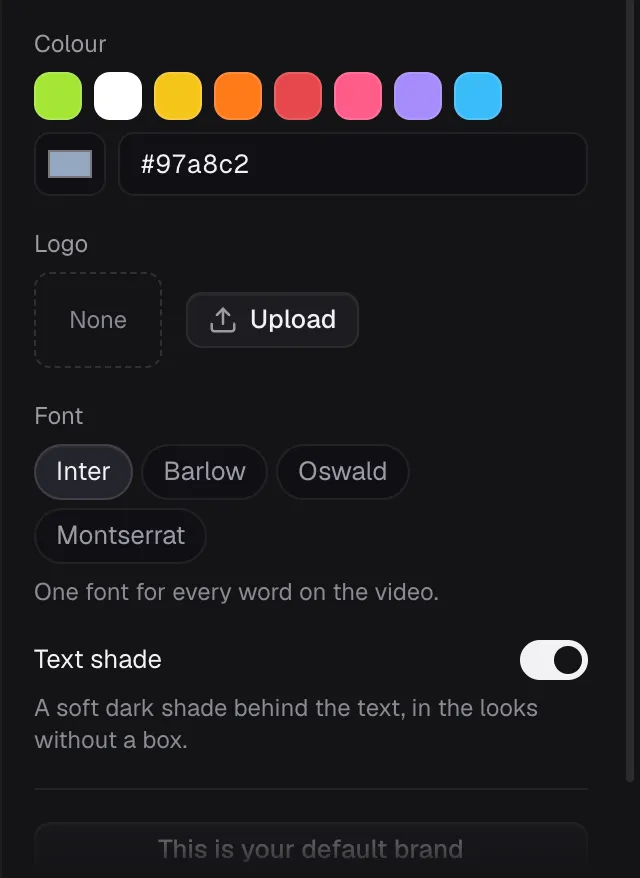
If you film against a bright wall or window, switch on Text shade for a soft shadow behind the words.
Where your colour shows
The ring timer, the progress bar, the up-next labels (all but Banner), the exercise name’s Solid box and the intro and outro graphics (all but the Frame style) take your colour. In the last three seconds of every exercise and rest, the number turns your colour too, right as the beeps play.
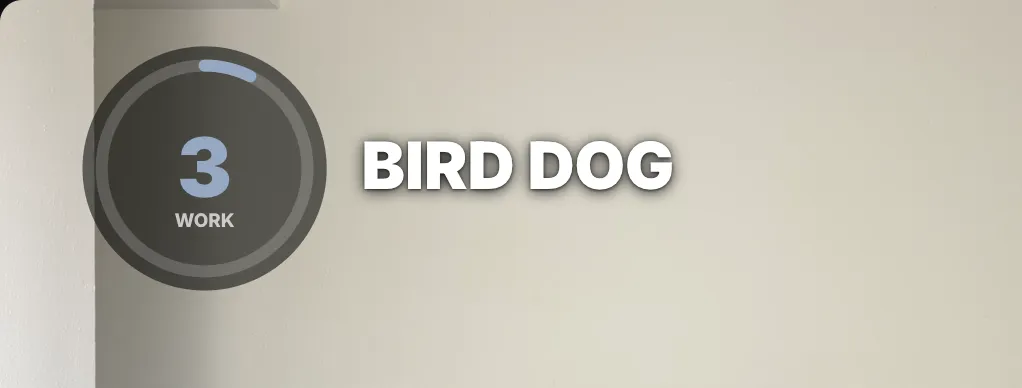
Pick a colour well away from white, or you won’t see that last-three-seconds change.
Put every widget where you want it
Open Widgets. While it’s open, the video shows every widget at once, so you can arrange them all together.
- Click the eye beside a widget to show or hide it on the video.
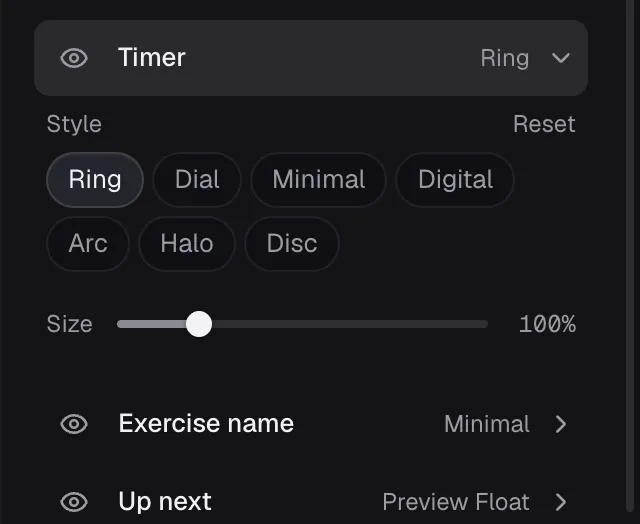
- Click Timer and pick a style: Ring, Dial, Minimal, Digital, Arc, Halo or Disc.
- Drag any widget on the video. It exports exactly where you drop it.
- Drag a corner to resize it, or use its Size slider.
Make it your own
Every widget has its own style settings, so mix and match the timer, the exercise name and up next until it looks like your channel. Click a widget’s row in the Widgets panel to change how it looks.
These are the styles in each row:
- Timer: Ring, Dial, Minimal, Digital, Arc, Halo or Disc
- Exercise name: Minimal, Solid (a box in your colour) or Bar
- Up next: the text styles Solid, Minimal, Bar and Slashes, or the window styles Preview Float, Banner, Caption, Poster and Column, which play the next exercise in a small window during each rest
- Tip: Pill, Card or Minimal
- Progress bar: Line, Stripes, Capsule or Percent (the last three show how much has played as a percentage)
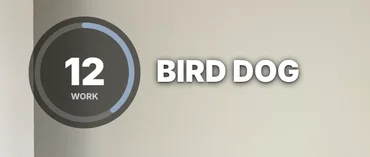 Ring
Ring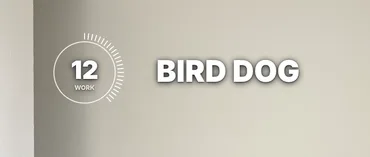 Dial
Dial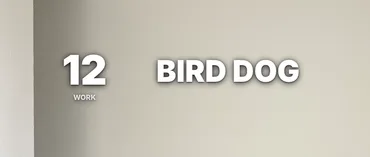 Minimal
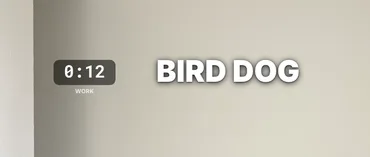 Digital
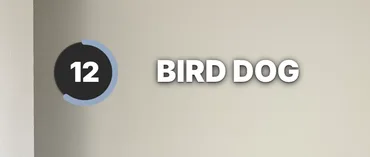 Arc
Arc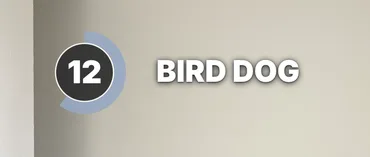 Halo
Halo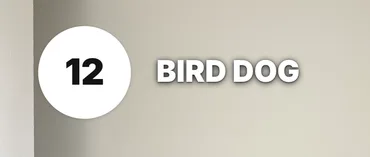 Disc
Disc
- Minimal
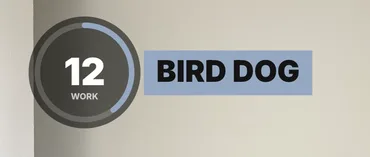 Solid
Solid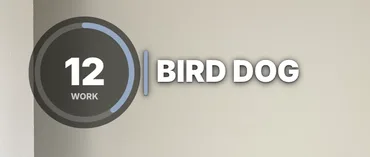 Bar
Bar
Save it as a layout
- At the top of the Widgets panel, click Save as new layout, type a name and press Return.
- Your first layout becomes the default, marked with a star. Every new workout starts from it.
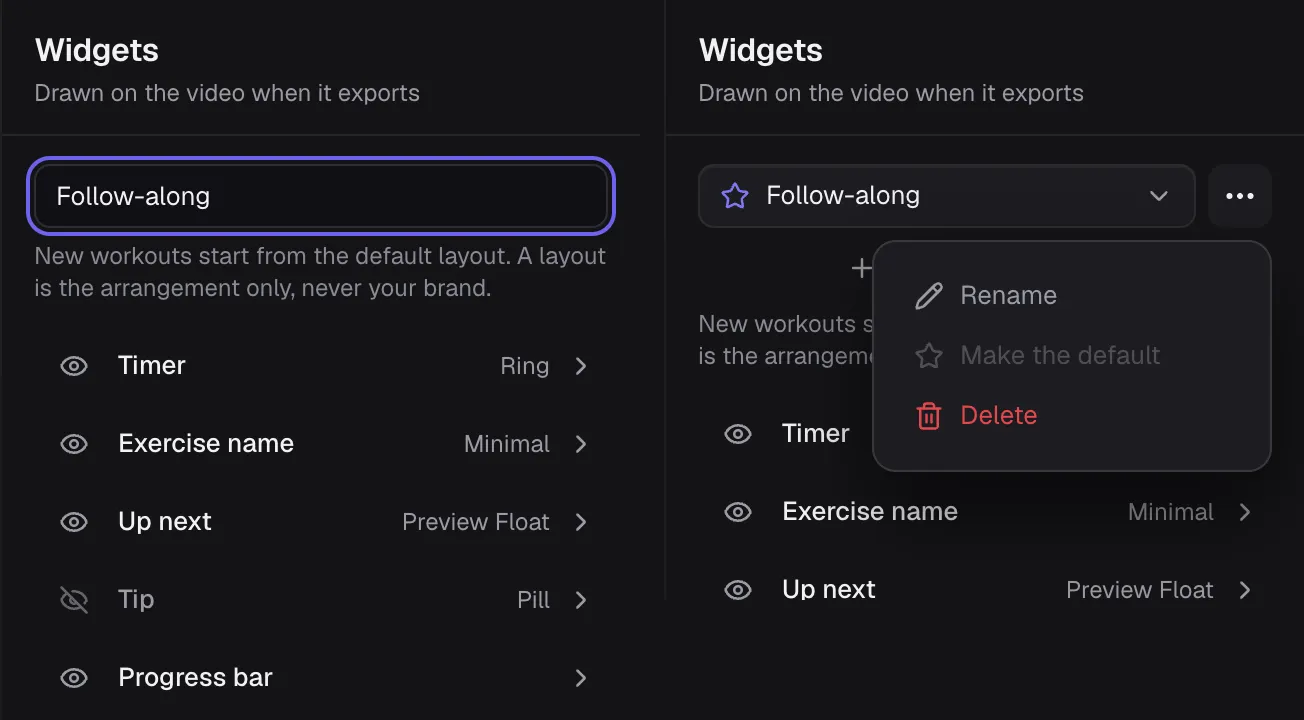
To bring an older workout into line, pick the layout from the list and its arrangement drops straight onto it. ⌘Z undoes it.
A layout holds the arrangement and leaves your brand alone, so you can keep one brand with a few layouts and switch between them without touching your colours.
Intros and outros
An intro or an outro is a graphic placed at one moment of the video. Open Graphics from the same column of icons, click + Graphic and choose Intro or Outro, and it lands at the playhead.
Pick a Style. If it isn’t the default yet, click Make this the default intro style (on an outro, Make this the default outro style). Every new one starts in that style, the way new workouts start with your default brand. How to add an intro and outro to a workout video covers the words and the timing.
Going vertical too?
Click 9:16 above the video and the widgets come with you, each in the same spot. They’ll look a little smaller in the tall frame, so give them a nudge bigger.
If you post both shapes, save a “Wide” and a “Vertical” layout and pick the right one after you switch.
Questions
How do I add my logo to a workout video?
In SweatCut, open the Brand panel, click Upload under Logo and pick a PNG, JPEG, WebP or GIF. Then click the eye beside Logo in the Widgets panel. It shows in the bottom left corner, and you can drag it anywhere.
How do I use the same timer style on every video?
Pick the style in the Widgets panel and click Save as new layout. Your first layout becomes the default, and every new workout starts from it.
Does changing my default brand change workouts I've already made?
No. Each workout keeps its own brand. The default sets what new workouts start with.
What fonts can I use in SweatCut?
Four pairings: Inter, Barlow, Oswald and Montserrat. The preview and the export always match.