Tutorial3 min read
Edit your first workout in SweatCut
Your first follow-along in SweatCut: drop in the recording, mark each exercise, type the names, cut the dead time and export. The timers place themselves.
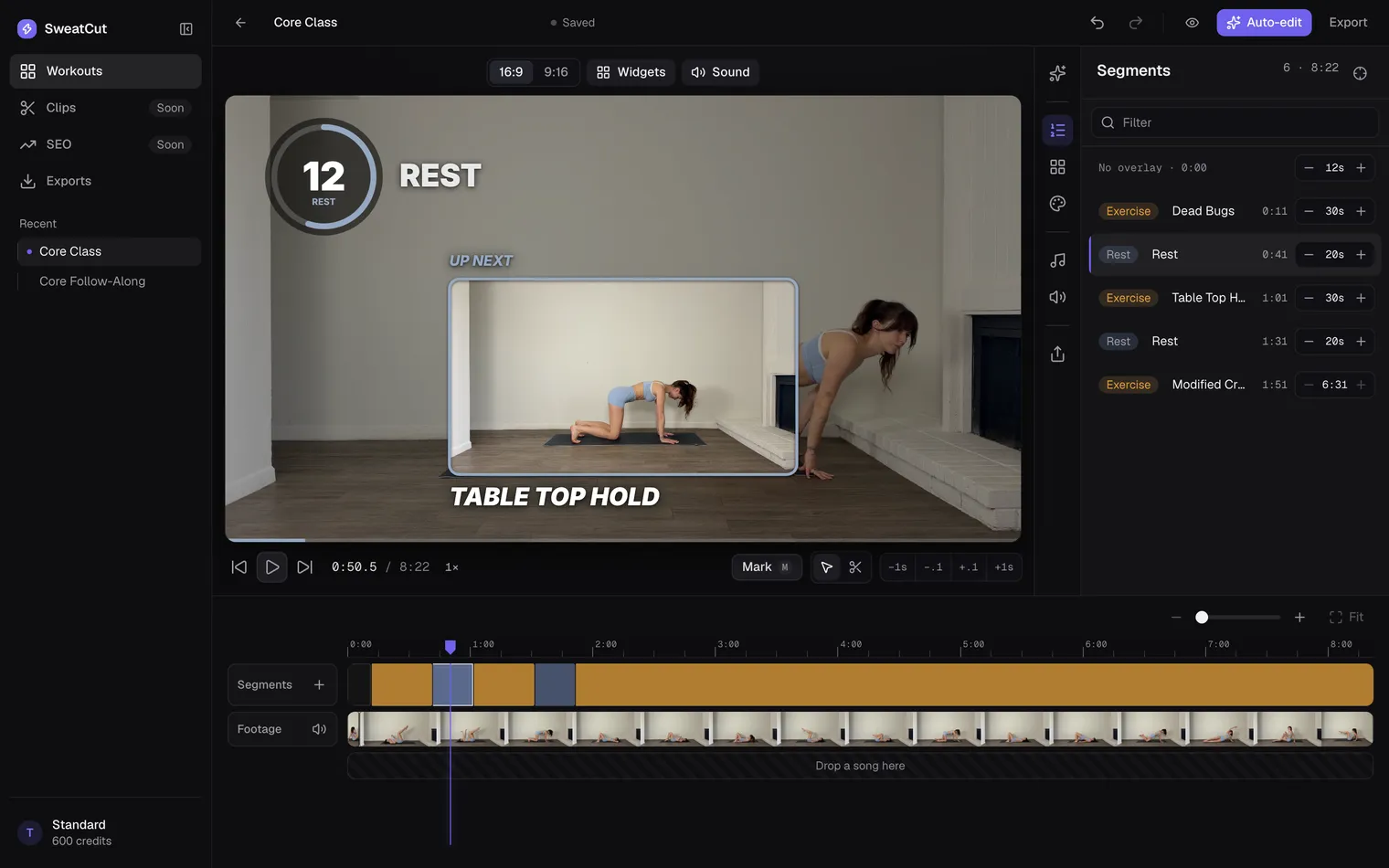
Here’s your first workout in SweatCut, start to finish. You press M as each exercise starts and type the names. SweatCut puts the timer, the exercise name and the up next on the video for you.
It works on every tier, Free included.
1. Drop in your recording
- In Workouts, click New workout (or press ⌘N).
- Drag your recording onto Drop your recording here.
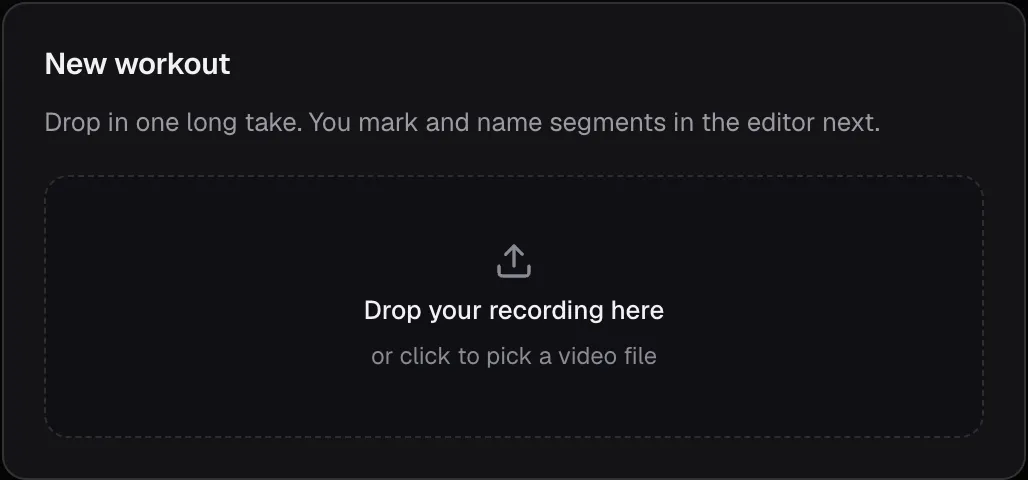
Your video stays on your Mac, so you can start editing straight away.
2. Press M at every change
- Click the Segments icon in the column to the right of the video.
- Press Space to play.
- The moment the first exercise starts, press M (or click Mark under the video).
- Keep pressing M each time an exercise or rest starts.
The timer and the name pop onto the video the second you mark.
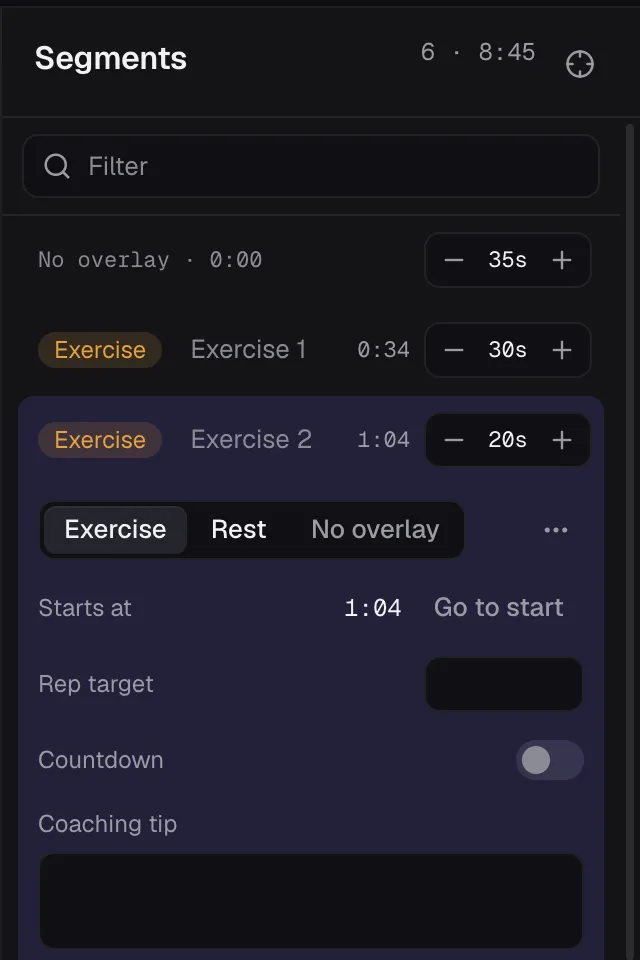
Every mark starts life as an Exercise. For a rest, click Exercise at the left of its row and pick Rest.
Would you rather skip the marking? Auto-edit can mark and name the whole workout for you. Here’s how to auto-edit a workout in SweatCut.
3. Type the names
Click the first placeholder, like Exercise 1, and type the real name. Press Tab to jump to the next one and work down the list. Leave rests blank and they show as Rest.
4. Cut the dead time
Cut out anything you don’t want in the finished video, like the walk to the mat or a long water break.
- Click the time ruler where the stretch starts and press C.
- Move to where it ends and press C again.
- Click the footage between the two lines and press Delete.
The timers update on their own. Your video file never changes, so any cut can come back, and ⌘Z undoes any step.
5. Export your video
- Click Export in the top bar.
- Under Shape, pick 16:9 landscape or 9:16 portrait.
- Under Resolution, pick anything up to 4K. It starts on 1080p.
- Click Export video.
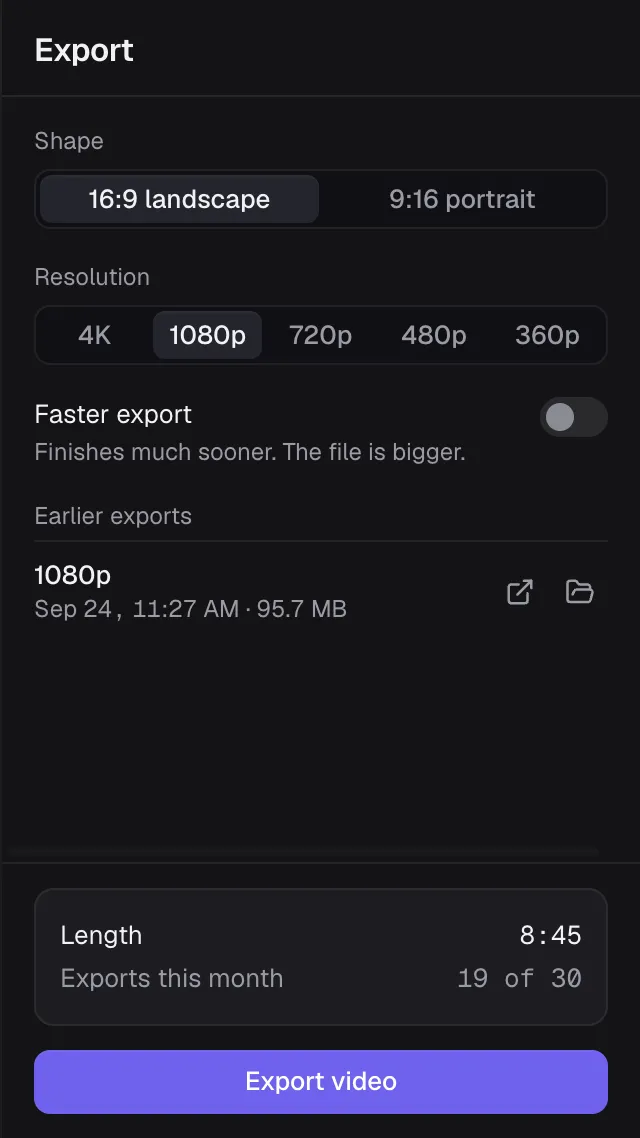
Your MP4 lands in a SweatCut folder inside Movies, named after the workout. Hover over it under Earlier exports for Open and Show in folder.
Handy shortcuts
| Key | What it does |
|---|---|
| Space | Play or pause |
| M | Mark an exercise or rest at the playhead |
| C | Cut the footage at the playhead |
| Delete | Remove the selected footage |
| ⌘Z / ⇧⌘Z | Undo / Redo |
Next, give every video your own look: set up your brand in SweatCut.
Questions
Can I use SweatCut without auto-edit?
Yes. Press M wherever an exercise or rest starts, type the names, and SweatCut places the timer, exercise name and up next for you. Starter ($19 a month) is the full editor without auto-edit.
Does cutting in SweatCut change my original video file?
No. Your recording never changes, so any cut can come back. Press ⌘Z, or drag the edge at the join back out.
Where does SweatCut save exported videos?
In a SweatCut folder inside your Mac's Movies folder, as an MP4 named after the workout. You can pick a different folder in Settings, under General.
Do I need to save my work in SweatCut?
No. SweatCut saves the workout after every change, and the top of the editor says Saved when it has.