Tutorial3 min read
How to auto-edit a workout video in SweatCut
Describe the workout, set where it starts and press Run. SweatCut's auto-edit marks every exercise and rest by name, and nothing changes until you apply it.
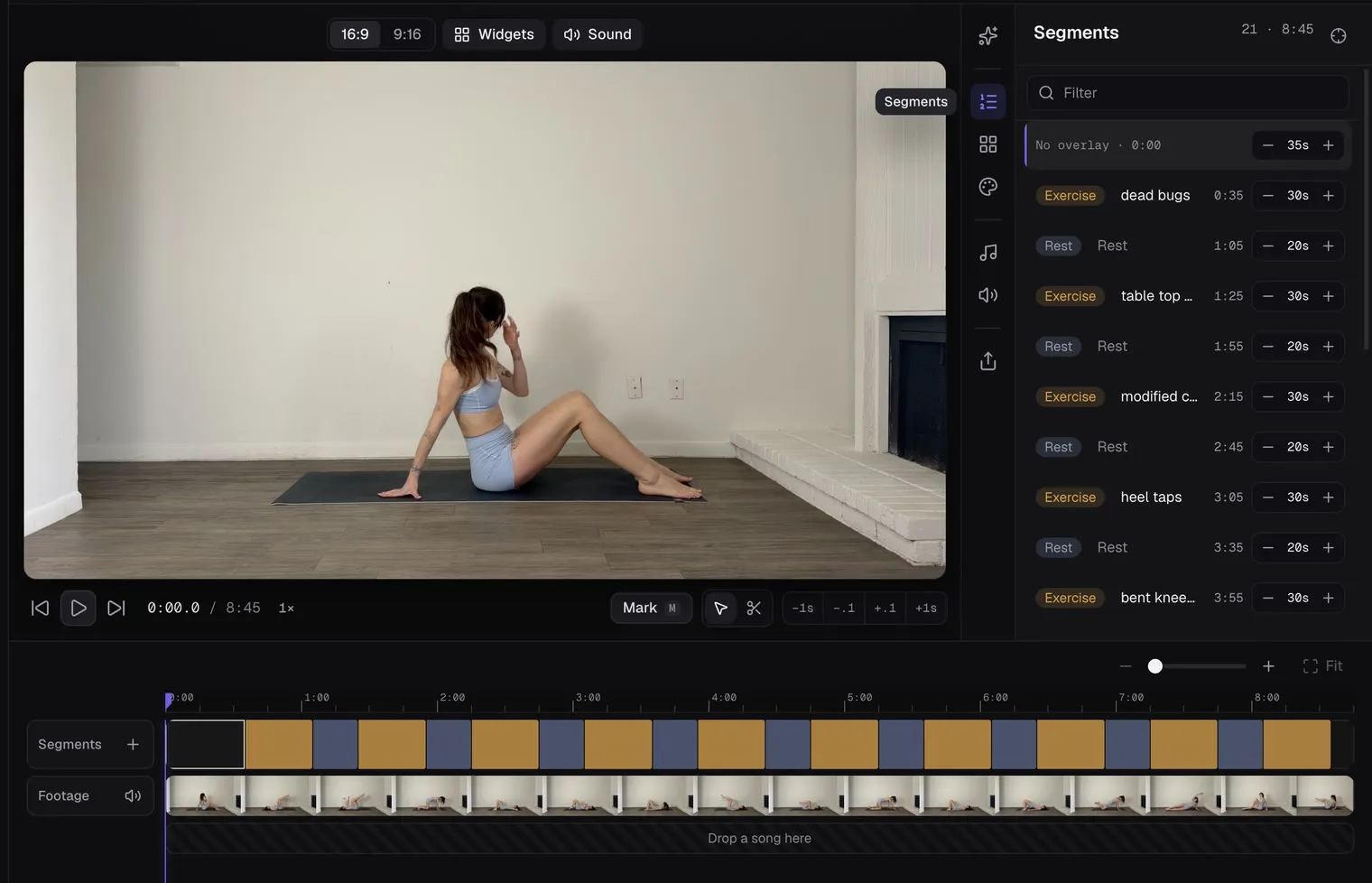
Auto-edit watches your workout and marks every exercise and rest for you, names included. You start the edit with the whole workout already marked.
It comes with Standard and Pro, and the free trial lets you try it on a full workout.
Run it in four steps
- Open the workout. The editor opens on the Auto-edit panel.
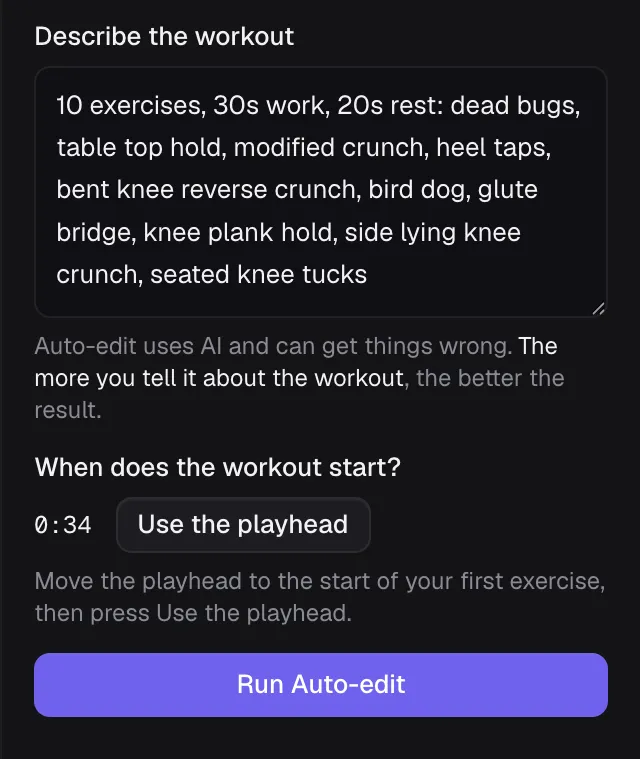
- Type what you filmed into Describe the workout.
- Move the playhead to where the workout begins and press Use the playhead.
- Press Run Auto-edit.
The card at the top shows how many credits the run will use, and what you have left this month, before you press anything.
Tell it what you filmed
The more auto-edit knows, the better the draft. Give it the rounds, the work and rest times, and the exercise names spelled the way you want them on screen.
3 rounds, 40s work, 20s rest: squats, push-ups, reverse lunges, plank, mountain climbers. 60s rest between rounds.
Mention any warm-up, water break or cool-down too.
Set the start, and set it right
The start time makes the biggest difference to the draft. If you spent a minute setting up before the first exercise, park the playhead on the first second of the workout itself, then press Use the playhead.
If the workout starts on the very first frame, press it at 0:00. Click outside the description box first, so the keys move the playhead again.
Let it run
The card shows “Analyzing the video”, then “Building the draft”. You’re free to work in another panel in the meantime. Cancel stops the run while it’s analyzing the video, and a cancelled run uses no credits. Once it’s building the draft, Cancel greys out and the draft always arrives.
Apply the draft
When it’s done, the card tells you how many exercises it found. Nothing on your timeline has changed yet.
Press Apply draft and the whole workout is marked in one go. Applying replaces any marks you’d already made and keeps your cuts. Changed your mind? ⌘Z takes the whole draft back.
Setting up or walking back to the camera comes back as No overlay: plain footage, ready for you to cut. Edit your first workout in SweatCut shows how.
Fix anything in a click
Auto-edit can get things wrong now and then. Each fix is one quick step, and ⌘Z takes it back.
- Drag the line between two bands on the timeline to move where one ends and the next begins.
- Click a name in its row and type to rename it.
- Click a row and pick Exercise, Rest or No overlay to change what it is.
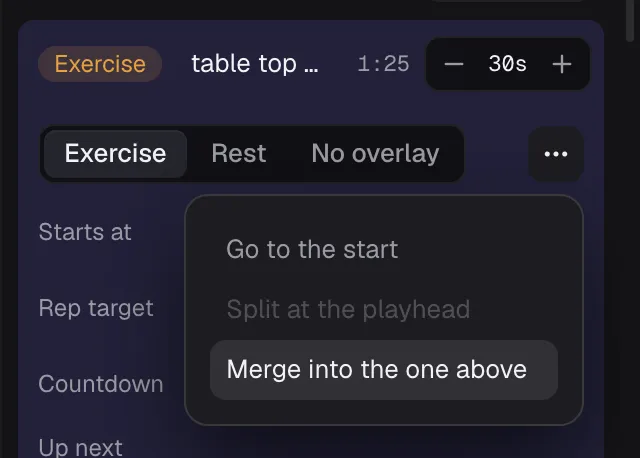
- Open a row’s ··· menu and choose Merge into the one above to remove it.
- To add one it missed, put the playhead where it starts and press M.
To put the timer and names in your own colours and font, set up your brand in SweatCut.
Questions
Which SweatCut tier includes auto-edit?
Standard ($49 a month at launch, normally $99, with 600 credits a month) and Pro ($199 a month, 2,000 credits a month). The free trial includes 100 credits to try it on one workout, and Starter doesn't include auto-edit.
Does a failed auto-edit use credits?
No. The card says "Auto-edit failed. No credits were used." Your description and start stay put, so you can tweak them and run it again.
Does SweatCut upload my video to auto-edit it?
No. Auto-edit looks at still frames taken from the video, and the video file itself stays on your Mac.
Does auto-edit cut the dead time out?
No. It marks quiet stretches, like setting up, as No overlay so they're easy to spot, and you cut them yourself.
How long can a video be for auto-edit?
Up to two hours, counted after your cuts. On a longer video the card says "Auto-edit works on up to two hours of footage." Cut it to two hours or less and you can run it.
Can I run two auto-edits at once?
No. One auto-edit runs at a time on your account, so a second one waits its turn, then carries on by itself. You can cancel it while it waits, and a cancelled run uses no credits.