Guide5 min read
How to make a follow-along workout video, from plan to post
Plan it, film it in one take, then add the timers, exercise names and music. Every step of a follow-along workout video, from the plan to the upload.
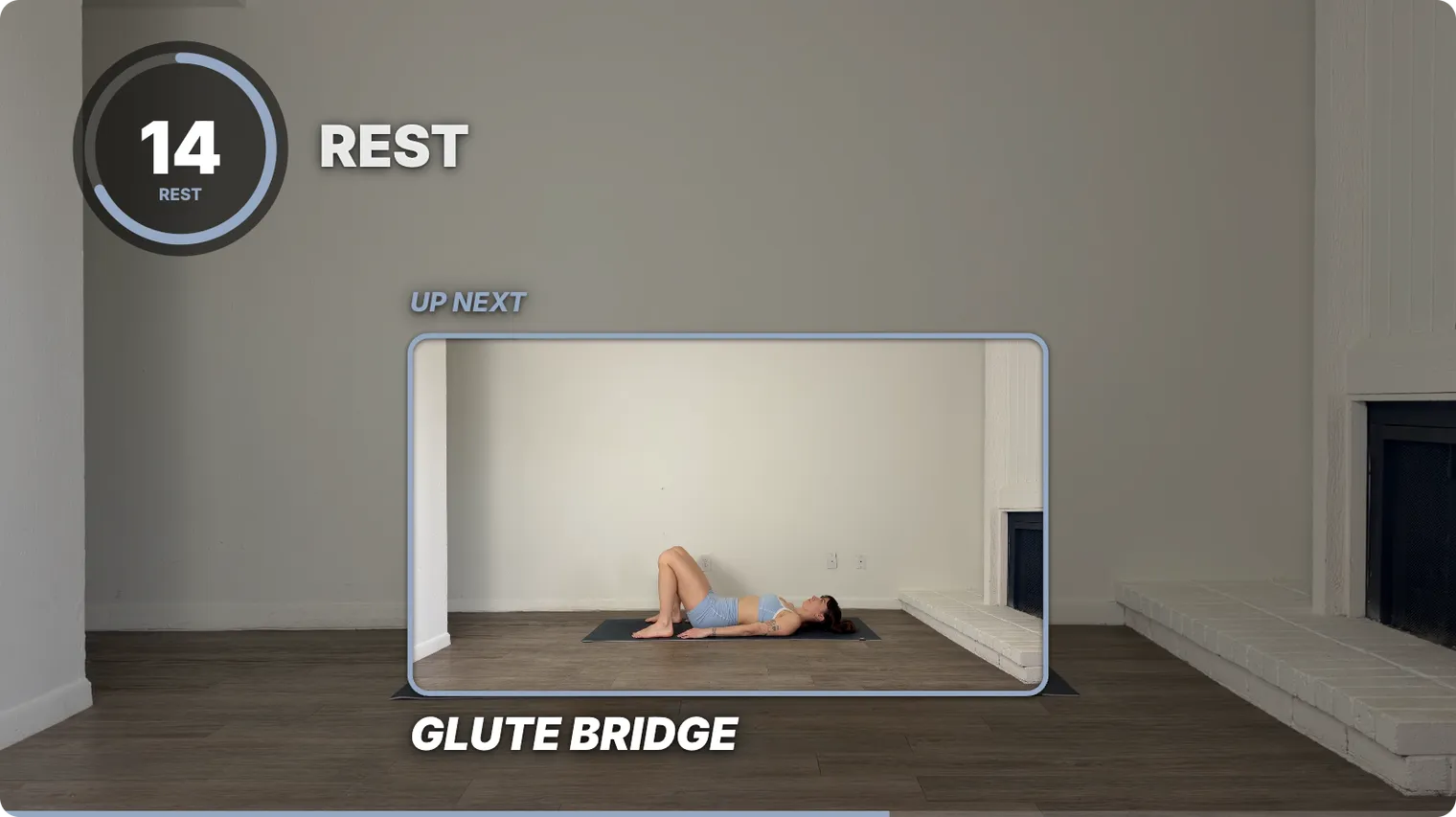
A follow-along workout video comes together in eight steps. You plan it, film it in one go, put the timers and names on, add music, trim the dead time and post it. SweatCut does the fiddly middle part for you.
The eight steps at a glance
| Step | You end up with |
|---|---|
| 1. Plan | A list of every exercise and rest |
| 2. Film | One continuous take |
| 3. Mark | A start time for every exercise and rest |
| 4. On screen | A timer, name and up next at every interval |
| 5. Cut | A video with no setup or restarts |
| 6. Music | Songs under your voice, with every beep clear |
| 7. Export | An MP4 in the shape you need |
| 8. Post | A published video |
1. Plan the workout
Write down every exercise, the work and rest times, and the rounds. You’ll reuse the list for the names on screen and your YouTube chapters. Ten exercises at 40 seconds on and 20 off take 10 minutes a round, so three rounds make a 30-minute video.
Keep names short enough to read from across the room: “Reverse lunge” works, “Alternating reverse lunge with knee drive” gets lost.
2. Film it in one take
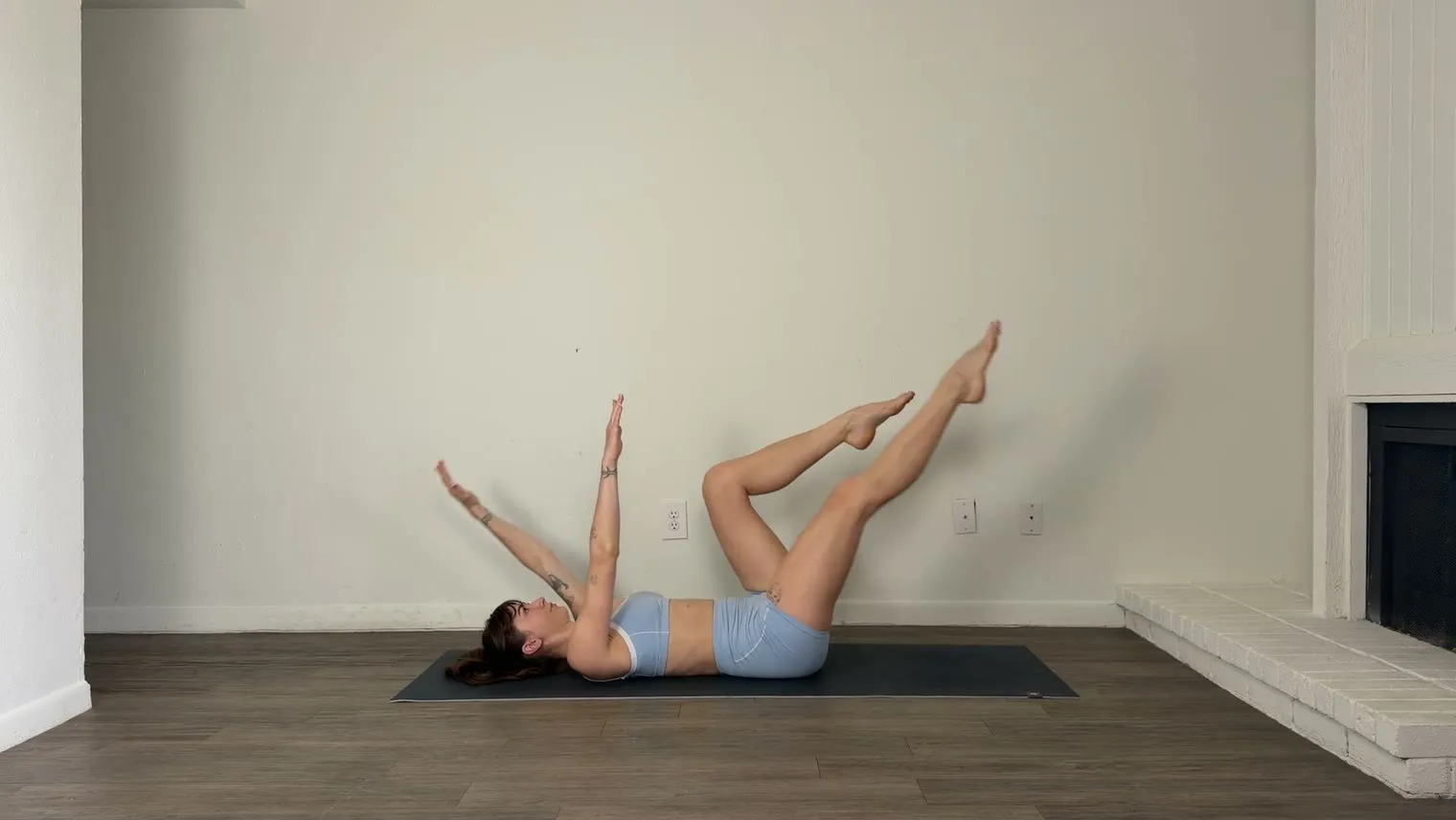
Hit record before the warm-up and stop after the last rep. Leave the camera running through water breaks and missed reps, because they come out later.
Pick the shape first: landscape (16:9) for YouTube, vertical (9:16) for Reels and Shorts. A vertical crop of landscape footage keeps less than a third of the width.
3. Mark where each exercise and rest starts
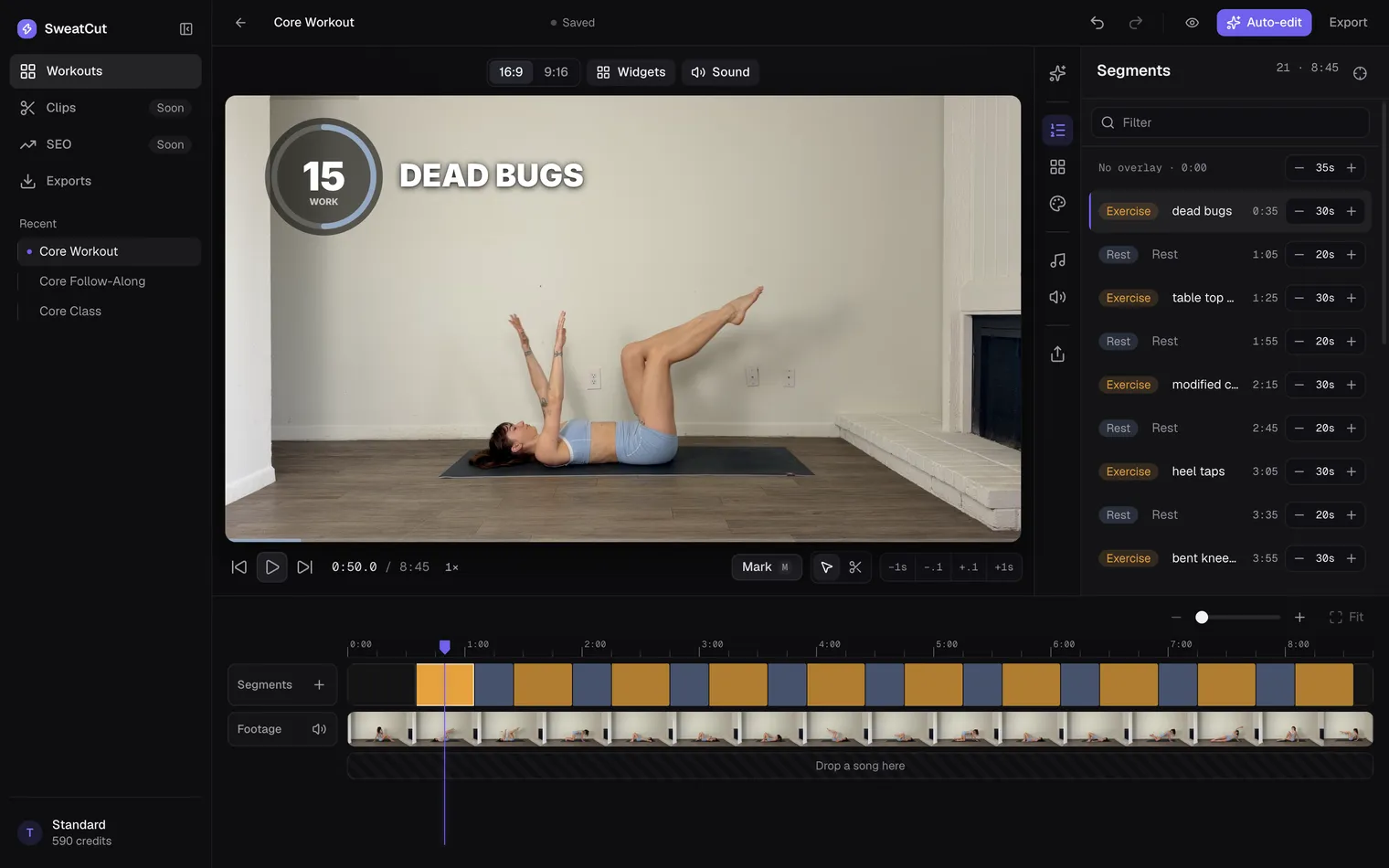
Every timer and name hangs off these marks, and a 30-minute workout can have 60 of them. In SweatCut you click Mark as the video plays, or let auto-edit mark the lot. Describe the workout in your own words, like “10 exercises, 30 seconds on, 20 off”, and it finds every exercise and rest by name. Nothing changes until you press Apply draft, and you can move or rename any mark afterwards.
4. Put the timer, name and up next on screen
A glance up mid-set should tell people what they’re doing, how long is left and what’s next. In most editors you build all of it by hand at every mark: a countdown made from a title per second or a paid plugin, a name typed and timed, an up-next clip cut and placed. Then you do it all again on the next video. In SweatCut they land on every mark by themselves, and the last three seconds of each exercise and rest beep. Here’s how to add the timers step by step.
Add a short intro over the warm-up, with the workout’s name, length and equipment, and an outro at the end that names the next workout. Here’s how to add an intro and outro.
5. Cut the dead time, and keep the rests
Cut the walk to the camera, the unplanned water break and any set you restarted, but keep the rests: people at home need every second of them. Make each cut between intervals so nothing ends up short. In SweatCut your video file is never changed, so any cut can come back.
6. Add music you’re allowed to use
Use songs you have the rights to on the platform you post to. On YouTube, a song can bring a Content ID claim, and depending on the copyright owner’s settings, the claim can block the video, run ads on it or track its views.
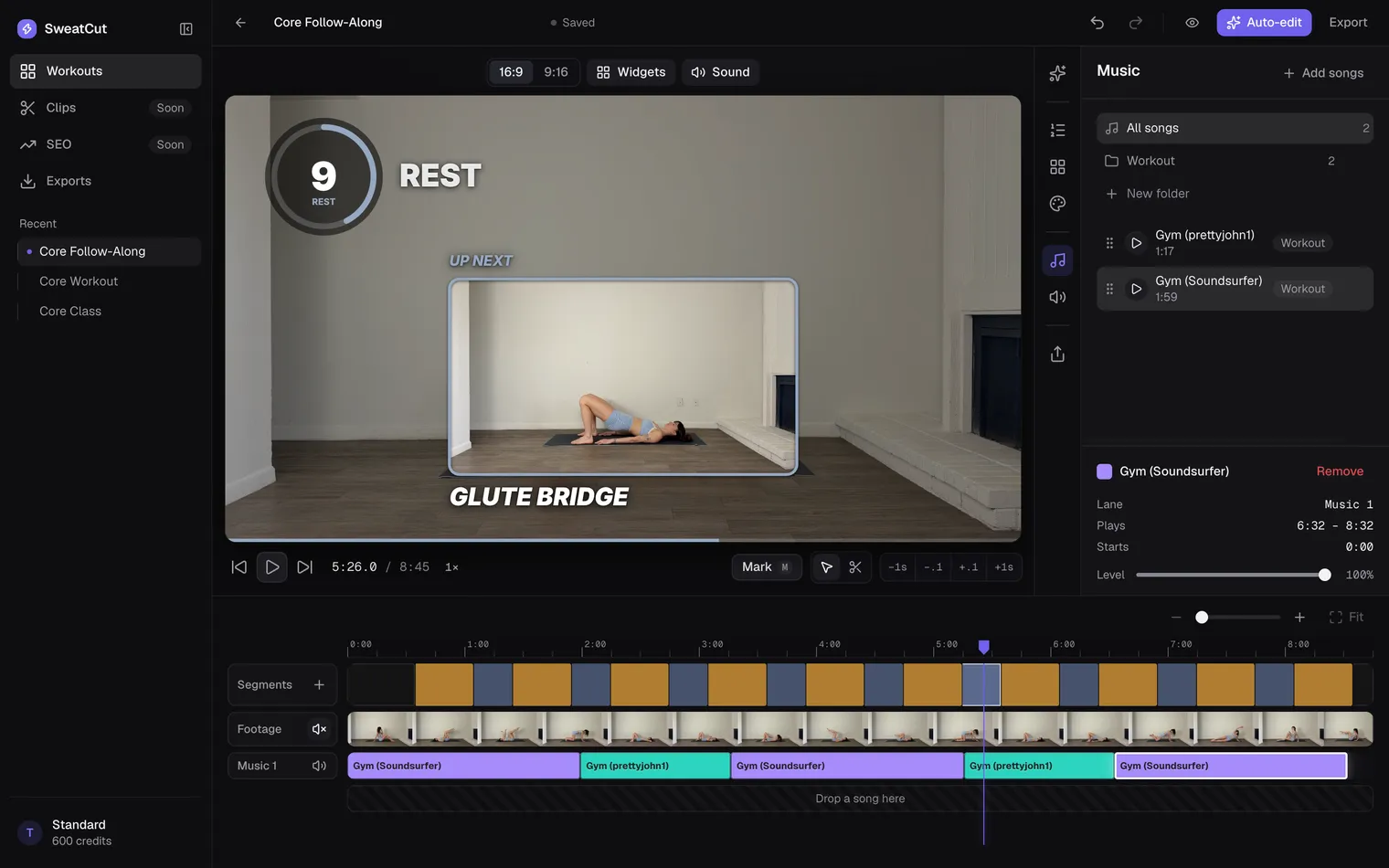
In SweatCut, songs dip under every countdown beep on their own and come back up after, so the count always cuts through. Switch on Auto ducking and they also turn down while you talk.
7. Export
Export in the shape you filmed. YouTube recommends an MP4 with H.264 video (the compression setting to look for) at the frame rate you recorded. SweatCut exports 16:9 or 9:16, up to 4K, with no watermark on any tier.
A YouTube Short can be up to three minutes, so it can only carry a slice of a 30-minute workout.
8. Post it
Verify your YouTube account before upload day. Uploads are limited to 15 minutes until you do, and a long video uploaded before you verify has to go up again. Verifying also unlocks custom thumbnails.
Title it with what people pick a workout by, like “30-minute full-body dumbbell workout”. Add chapters as timestamps in the description: start at 00:00, list at least three, and make each at least 10 seconds long.
YouTube lets you add an end screen, clickable boxes over the last 5–20 seconds of the video, so time the outro to run under it and keep its words clear of the boxes.
The easy way through steps 3 to 7
SweatCut is a Mac video editor made for exactly this kind of video (here’s how it compares with CapCut, Descript, Final Cut and the rest). It opens your recording straight from your Mac, finds the exercises, puts every timer and name in place and keeps the music out of the way of the beeps. You can try it free on one full workout, with no card needed.
Questions
Should you cut the rest periods out of a follow-along workout video?
No. The rests are part of the workout, and people following along need every second of them. Cut only the dead time, like setup, unplanned water breaks and restarted sets.
Do you need to film each exercise separately?
No. Film the whole workout in one continuous take so the real pace of every exercise and rest stays intact. The dead time comes out afterwards, and the timers and names go on in the edit.
Can you upload a workout video longer than 15 minutes to YouTube?
Yes, once your account is verified. As of September 2026, YouTube Help says uploads are limited to 15 minutes by default and verified accounts can upload longer videos.
What aspect ratio should a workout video be?
16:9 (landscape) for YouTube, and 9:16 (vertical) for Reels and Shorts. Decide before you film, because cropping landscape down to vertical keeps less than a third of the width.