Tutorial4 min read
Turn the music down when you talk, with Auto ducking
Where to switch on Auto ducking in SweatCut, how far to let the music drop, how long to keep it down between sentences, and how to check the result by ear.
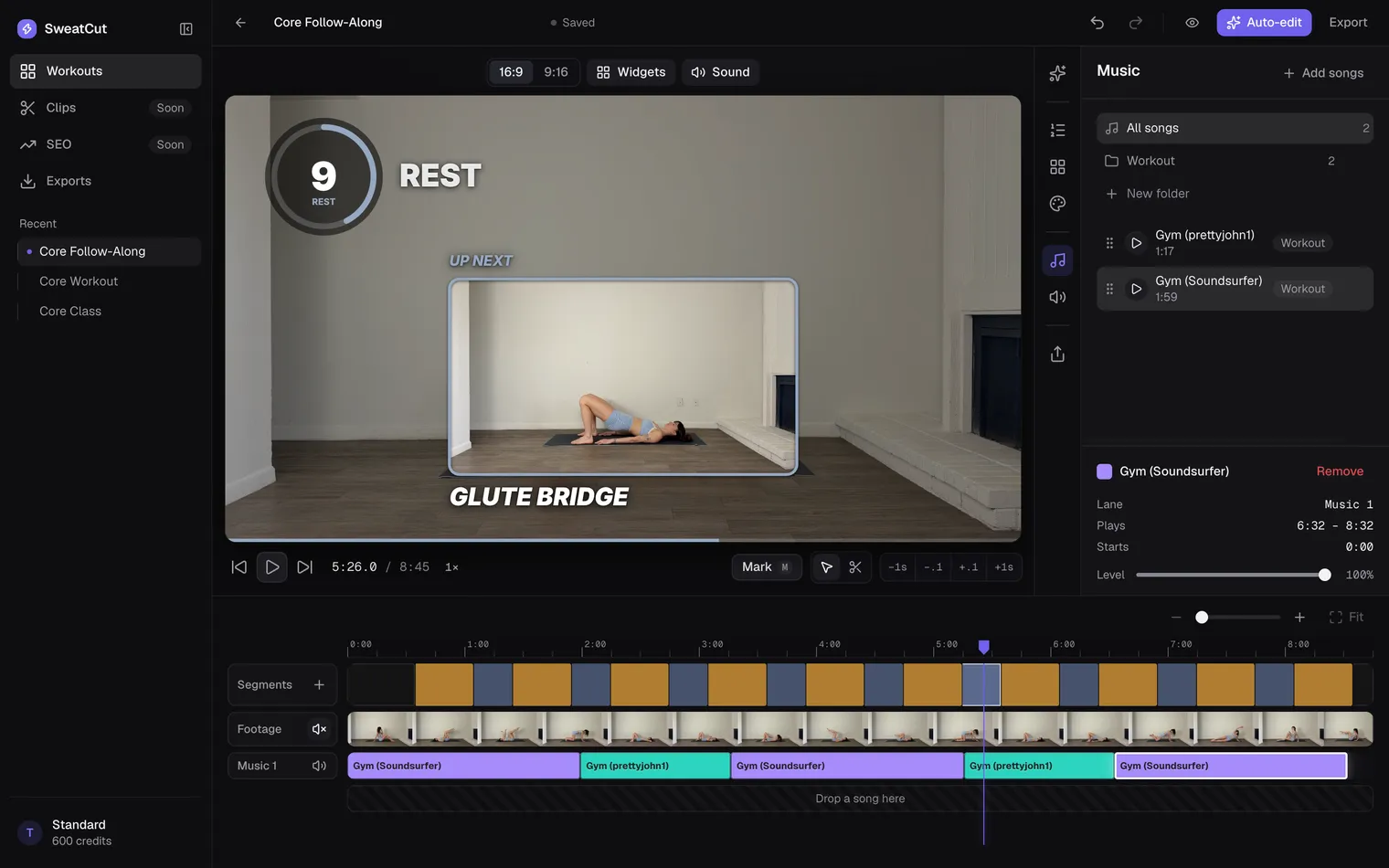
Auto ducking turns the music down while you talk and brings it back up when you stop. Ducking is the editors’ word for that dip. In SweatCut it’s one switch in the Sound panel, and it covers the whole workout, so there’s no dip to set by hand.
It reacts only to speech, and SweatCut does the listening on your Mac. The editor, Preview and the exported video all play the same dips. Auto ducking works on every tier, the free trial included.
How does it know you’re talking?
On a camera mic, a grunt at the bottom of a squat can be as loud as a sentence. So can a sharp breath, or a dumbbell set down hard. Auto ducking listens for speech, so none of those turn the music down.
SweatCut listens to the recording once, in the background, and the video never leaves your Mac. Once it has listened, it knows where each sentence starts, so the music starts down half a second before you speak. Your first word never lands on full music.
Switch on Auto ducking
- Open the workout and click the Sound icon, the speaker, in the column to the right of the video.
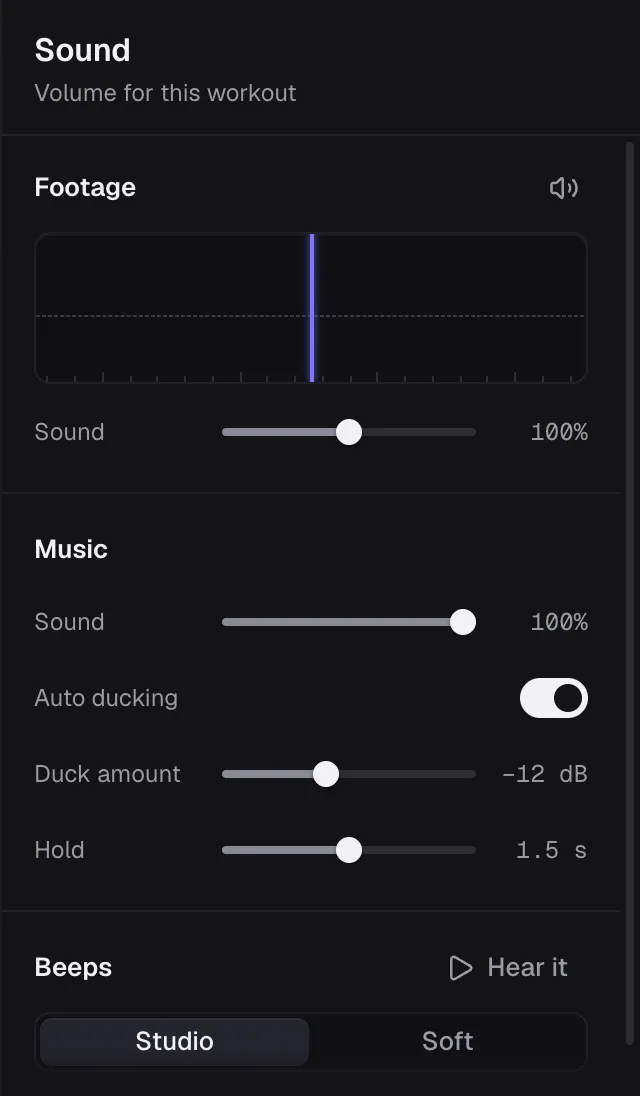
- Under Music, switch on Auto ducking.
- Play a stretch where you talk over a song.
Auto ducking starts off in a new workout. Each workout keeps its own setting, so switch it on wherever you want it. If the close-up at the top of the panel still reads “Listening for talking”, switch it on anyway. The dips arrive once the listening is done.
If the switch is greyed out
The footage has no sound, so there’s no voice for the music to make room for, and the close-up says “No sound in this footage”. For the same reason, muting the footage or pulling its Sound slider down to 0% stops the music ducking, even with the switch on.
Set how far the music drops
Duck amount sets how far the music goes down while you talk. It’s measured in decibels (dB), the unit for loudness, and it starts at −12 dB. If a word still gets lost under a busy song, drag it right to take the music further down, as far as −30 dB. Even there the songs keep playing quietly under you. At 0 dB they don’t move at all.
The Sound slider under Music sets how loud all the songs play while you’re quiet. Set it first, on a work interval where you don’t talk, then use Duck amount for the moments you do.
Set how long it stays down
Hold sets how long the music waits after you stop talking before it comes back up. It starts at 1.5 s and goes anywhere from 0 s to 3 s. When the Hold runs out, the music rises over half a second.
A pause shorter than the Hold keeps the music down, so the gaps between your sentences don’t bob it up and down. If you cue in short bursts (“Chest up. Two more.”) and the music pops up in the gaps, drag Hold toward 3 s. If it stays low after you’ve finished and the next interval starts flat, bring Hold down.
Check it in the close-up
At the top of the Sound panel, under Footage, the close-up shows the 20 seconds around the playhead. Your talking appears as a waveform, a picture of the sound that’s taller where you’re louder. Everything else stays flat, so coughs and clanks never show. A line marked Music runs across it wherever a song plays, and with Auto ducking on it dips under your talking.
Click anywhere in the close-up to move the playhead there, then play it back. The close-up follows your cuts, and talking you’ve cut out of the video never dips the music.
Listen through a phone speaker before you export. How to add music to a workout video covers how to judge the level by ear.
What happens at the countdown beeps?
SweatCut already dips the songs under every countdown beep and the ding at each change, with nothing to set. Auto ducking leaves those dips in place. Talk through a countdown and both still happen, but where they overlap they don’t add up: the music goes only as low as the deeper of the two.
If your voice is quiet in the recording
If the camera sat across the room, your voice can sound small in the recording. Drag the Sound slider under Footage past 100%, up to as much as 200%. It raises everything the camera heard, the clanks included, so go only as far as your words need.
To balance the music against it, the Sound slider under Music turns every song up or down together. Each song keeps its own Level from the Music panel, and this slider works on top of it.
A clip-on mic fixes a quiet voice before you ever start editing, and how to film a workout video covers the setup.
Questions
What is auto ducking in video editing?
Auto ducking turns the music down on its own while someone talks and brings it back up when they stop, so the voice stays clear without anyone setting each dip by hand. In SweatCut it's a switch in the Sound panel, under Music.
Does auto ducking react to grunts or dropped weights?
Not in SweatCut. It listens for speech, so a grunt, a breath or a dropped weight doesn't turn the music down, however loud it is on the recording.
How far should music duck under a voice?
Far enough that every word is clear on a phone speaker. SweatCut's Duck amount starts at −12 dB and goes as far as −30 dB, where the music still plays quietly under the voice.
Does auto ducking work with countdown beeps?
Yes. In SweatCut the music still dips under every countdown beep, and where a beep dip and a talking dip overlap, the music goes only as low as the deeper of the two, never twice as far.
Does SweatCut upload my audio to find where I talk?
No. SweatCut listens for your talking on your Mac, and the video and its sound stay there.
Why is Auto ducking greyed out in SweatCut?
The footage has no sound, so there's no voice for the music to make room for. The close-up at the top of the Sound panel says No sound in this footage.